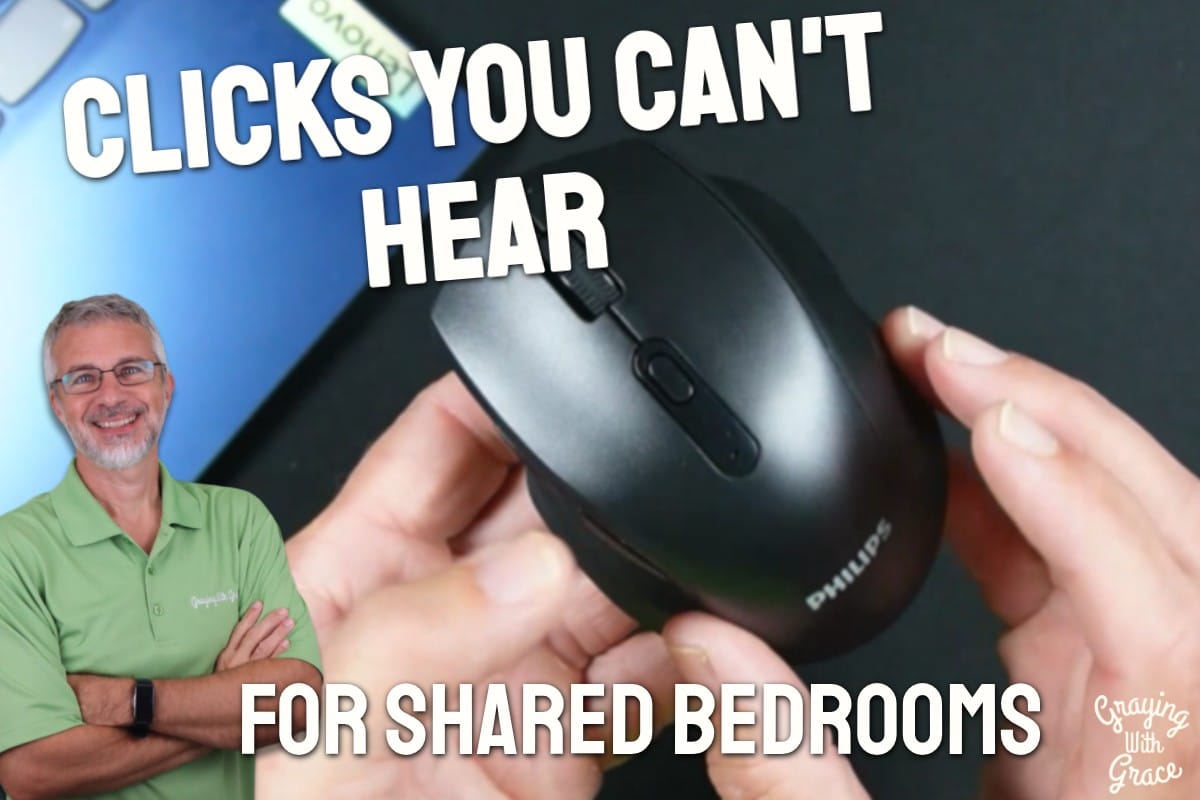
Have you ever finished a computer session and realized your hand actually aches? Or maybe you’ve been shushed for clicking too loud while someone else was sleeping in the next room. If either of those sound familiar, you’re not alone, and you’re exactly who this review is for.
A lot of older adults deal with mouse hurts arthritic hands, or find that a tremor makes clicking difficult on those tiny, flat laptop track pads. Add in a shared bedroom or a spouse trying to nap, and a loud clicking mouse becomes a real problem, not just an annoyance.
I’m Scott Grant, a Certified Senior Advisor (CSA) and Senior Home Safety Specialist (SHSS) with Graying With Grace, and I spend a lot of time testing products that make daily computer use easier and more comfortable for older adults.
I purchased this product myself so I could test it out and show you how it works.
In this review, I’ll walk you through what I found when I actually used this quiet ergonomic wireless mouse for older adults day in and day out, including the good, the not-so-good, and who it’s really built for.


Quick Takeaways
- Solves the problem of loud clicking disturbing others in shared living spaces
- Eases hand and wrist strain caused by flat laptop track pads
- Best for older adults with small to medium hands and average computer use
- Worth the investment if you use a laptop regularly or share a room with someone who’s sensitive to noise
- Standout feature: silent micro-switch clicks that are genuinely, noticeably quiet
- Biggest limitation: side buttons and full functionality don’t carry over to Mac or iOS devices
Who This Is For
If you’ve been searching for how to buy a quiet mouse for arthritis hands, the PHILIPS Wireless Mouse for Laptop is built with exactly that in mind. Its contoured shell and silicone grips reduce the tight, pinching grip that flat track pads and cheap mice tend to demand.
If you share a bedroom or a quiet living space with someone else, and you’ve been looking for a silent click mouse for a hand tremor or just noisy clicking in general, this mouse solves that specific irritation. I tested the sound level myself, and it truly is close to silent on the main buttons.
If you regularly switch between a laptop, a desktop, and a tablet throughout the day, this mouse’s three-device switching means you don’t need three different mice cluttering your desk. That kind of simplicity matters more as we get older and want fewer things to fuss with, not more.
Ready to discover more innovative strategies for healthy, comfortable aging? Subscribe to our newsletter for expert-tested tips and product recommendations designed specifically for older adults.
How This Could Help You
Think about how much of your day involves a mouse or track pad, whether it’s checking email, browsing photos of the grandkids, or paying bills online. A tool that reduces strain on your hand can make all of that just a little more comfortable.
As I demonstrated in the video, the Philips Wireless Mouse For Laptop has a slanted, contoured shape rather than a flat design, which follows the natural curve of your hand instead of fighting against it. That’s a meaningful difference if you’ve ever compared an ergonomic mouse to a standard flat one and felt your wrist thank you.
Wondering how this compares to a trackball for seniors dealing with limited hand mobility? A trackball can require less overall hand movement, but this mouse offers something a trackball doesn’t: total silence on the clicks, plus the flexibility to switch between three devices with one click of a button.
If your search brought you here wondering about wireless mouse hand tremor solutions, the adjustable DPI settings let you slow the cursor speed down significantly, which can help reduce overshoot if your hand movements aren’t perfectly steady.
Important Details You Should Know
This mouse is a standard compact size, small enough to toss in a bag if you’re moving between a home office and another room, or even traveling.
It runs on a single AA battery, which is included, so there’s no charging cord to keep track of and no dead battery panic in the middle of a video call.
The shell has a smooth, mouse-pad-like texture where your thumb rests, and in my hands-on testing, nothing caught or snagged during normal use.
Build quality feels solid, and being a Philips product, it carries the kind of manufacturing reputation that gives some peace of mind about long-term durability.
Getting Started
In the box, you’ll find the mouse itself, a AA battery, and a small USB receiver tucked inside the battery compartment.
Setup is genuinely simple: pop in the battery (after peeling off a thin plastic strip over the battery contacts), flip the power switch to on, and plug the USB receiver into your laptop.
When I evaluated this product, I noticed it connected almost instantly once the battery made contact, no software install or fuss required.
If you’d rather skip the USB receiver entirely and use Bluetooth instead, it only takes a few taps through your computer’s Bluetooth settings, and I walked through that exact process in the video.
Features That Matter to You
The quiet micro-switch buttons are, in my opinion, the standout feature here. As I demonstrated in the video, I held the microphone right up to the mouse while clicking, and you genuinely cannot hear it from across a room.
The PHILIPS Wireless Mouse for Laptop also includes back and forward buttons that work like your browser’s navigation buttons, which can save a lot of fumbling around if you’re not comfortable using keyboard shortcuts.
The adjustable DPI switch lets you slow things down or speed things up depending on how steady or fast you want your cursor to respond, which is especially helpful if you’re managing a hand tremor or simply prefer more deliberate movements.
A physical on/off switch means you can conserve battery life easily when traveling or storing it for a while, without worrying about it draining in a bag.
Real Life Experience
When I evaluated this product, I noticed the difference in click sound immediately compared to my old mouse, it’s not a subtle improvement, it’s a real one.
As I demonstrated in the video, I connected the mouse in Bluetooth mode without even using the USB receiver, and the pairing process took just a couple of taps in the settings menu.
In the video, you can see that switching the DPI setting changes how far the cursor travels with the same hand movement, which is genuinely useful if you’ve ever felt like a mouse was either too twitchy or too sluggish.
I mentioned in the video that I’m a heavy computer user, and in my experience, the battery doesn’t quite reach the advertised 12-month estimate. I found it closer to six to nine months, so I keep a couple of spare AA batteries near my desk just in case.
I also demonstrated waking the mouse from deep sleep mode, which takes a single click and about a second or two to reconnect, a small delay that’s worth knowing about ahead of time so it doesn’t catch you off guard.
Will You Be Able to Use It?
If you have small to average-sized hands, this mouse should feel comfortable right out of the box, with no adjustment period needed.
Setup requires basic dexterity to insert a AA battery and plug in a USB receiver, both of which are simple, one-time tasks. If those steps feel daunting, a family member or caregiver can easily handle setup in just a couple of minutes.
Ongoing use is as simple as picking it up and clicking, no special training required, and no complicated software to learn.
Important Considerations
If you have extremely large hands, I’ll be honest with you, this may feel a little small and require more of a gripping motion than a relaxed rest.
If you’re a Mac or iPad user relying on the side thumb buttons for navigation, know upfront that those buttons don’t function on macOS or iOS due to system restrictions. The core clicking and pointing functions work fine, but that specific feature won’t be available.
Anyone managing significant tremors or grip weakness should chat with an occupational therapist about whether a trackball or joystick-style mouse might serve them better, since this is still a traditional handheld mouse design.
Always consult with your doctor or occupational therapist before making health-related product decisions, especially if arthritis, tremors, or grip strength are ongoing concerns.
Help When You Need It
As a Philips product, it’s backed by the company’s standard manufacturer warranty and customer support channels.
Returns and exchanges are handled through the retailer you purchase from, so keep your order confirmation handy just in case.
Replacement AA batteries are available virtually anywhere, so you’ll never be stuck waiting on a specialty part.
Understanding the Cost
Without getting into specific numbers, this mouse sits in a very reasonable spot for what it offers: silent clicking, ergonomic design, and multi-device switching all in one unit.
Considering how often we all use a mouse throughout the day, investing in one that reduces hand strain and noise complaints feels like a smart long-term move rather than a splurge.
If you want something even more budget-friendly, a basic wired mouse might work, but you’ll lose the quiet clicks and wireless flexibility that make the Philips Wireless Mouse For Laptop stand out.
Making It Work for You
Start by adjusting the DPI setting until the cursor speed feels natural for your hand movements, don’t just settle for the default.
Keep a spare AA battery nearby so you’re never caught without power in the middle of something important.
If you’re pairing it with a tablet or second computer, take a few minutes to set up all three connection modes ahead of time so switching between devices becomes second nature.
Our Recommendation
If you’re dealing with hand fatigue from a laptop track pad, or you’ve been quietly frustrated by loud clicking in a shared space, I think this mouse is genuinely worth adding to your setup.
It’s best suited for older adults with small to medium hands who use a laptop primarily on Windows, though Mac and iPad users can still enjoy the core pointing and clicking functions.
If you have very large hands or absolutely need working side buttons on a Mac, I’d suggest looking at a different ergonomic option built specifically for that platform.
Where to Get It
You can check current availability and any current offers on the PHILIPS Wireless Mouse for Laptop through the link above. Availability can shift, so it’s worth a quick look before you decide.
Conclusion
At the end of the day, small daily frustrations, like a loud click or an achy hand, add up over time, and this mouse tackles both head-on. It’s quiet, comfortable, and flexible enough to move with you across devices.
If you’ve been putting up with a mouse that just isn’t working for you anymore, this might be the simple upgrade that makes your computer time noticeably more pleasant.
I’d love to hear from you, drop a comment and let me know what’s been your biggest frustration with mice or track pads, I read every one.