
Do you have a laptop sitting on the kitchen table, a tablet on the nightstand, and maybe a desktop in the den? And are you still unplugging one mouse and moving it from device to device every time you switch? If that sounds familiar, you are not alone.
That frustration is exactly what the right wireless mouse can solve. As a Certified Senior Advisor and Senior Home Safety Specialist, I evaluate products like this with one question in mind: does it actually make daily life simpler for older adults?
I received the Kenvala Wireless Mouse Multi-Device directly from Kenvala for hands-on testing, and I put it through its paces across multiple devices. In this review, I will cover how it connects, how easy it is to set up, what makes it stand out, and whether it is worth your attention.


Quick Takeaways
- Solves: The hassle of juggling multiple mice or unplugging and moving one mouse between devices
- Best for: Older adults who use a laptop, tablet, and desktop computer and want one simple solution
- Worth it? Yes, especially for anyone who values convenience and a clean, clutter-free workspace
- Best feature for seniors: Silent clicks and adjustable cursor speed make it comfortable for daily use
- Biggest limitation: It connects to one device at a time, so you press a button to switch rather than using it on two screens at once
How This Could Help You
Imagine starting your morning checking email on a laptop, then switching to your iPad for a video call with the grandkids, then moving over to the desktop to handle some paperwork. That used to mean three different mice or a lot of unplugging. Not anymore.
The Kenvala Wireless Mouse Multi-Device stores the pairing information for all three devices. When you want to switch, you simply press the button on the back of the mouse. That is it. One second and you are on the next device.
If you have been searching for the best wireless mouse for laptop use that also works with your tablet or second computer, this covers all of those needs in one compact package. It supports MacBook, iPad, Windows PC, Chromebook, and more.
Are you tired of your screen locking up mid-download or while reading a long article? The built-in activity mode, sometimes called a jiggler mode, gently simulates cursor movement to keep your screen awake. No software to install. No apps to download. Just a feature you turn on when you need it.
For older adults who are working from home, doing online learning, or simply managing the household from a few different screens, this is one of the most practical wireless mouse for laptop or desktop setups I have tested.
Important Details You Should Know
The Kenvala Wireless Mouse has a slim, lightweight profile that slips easily into a bag or purse. It will not take up much space on your desk either.
The rose gold color is attractive and easy to spot on a cluttered surface. It does not look like a piece of industrial hardware.
The build feels solid without being heavy. The buttons have a satisfying, slightly tactile response even though they make almost no sound.
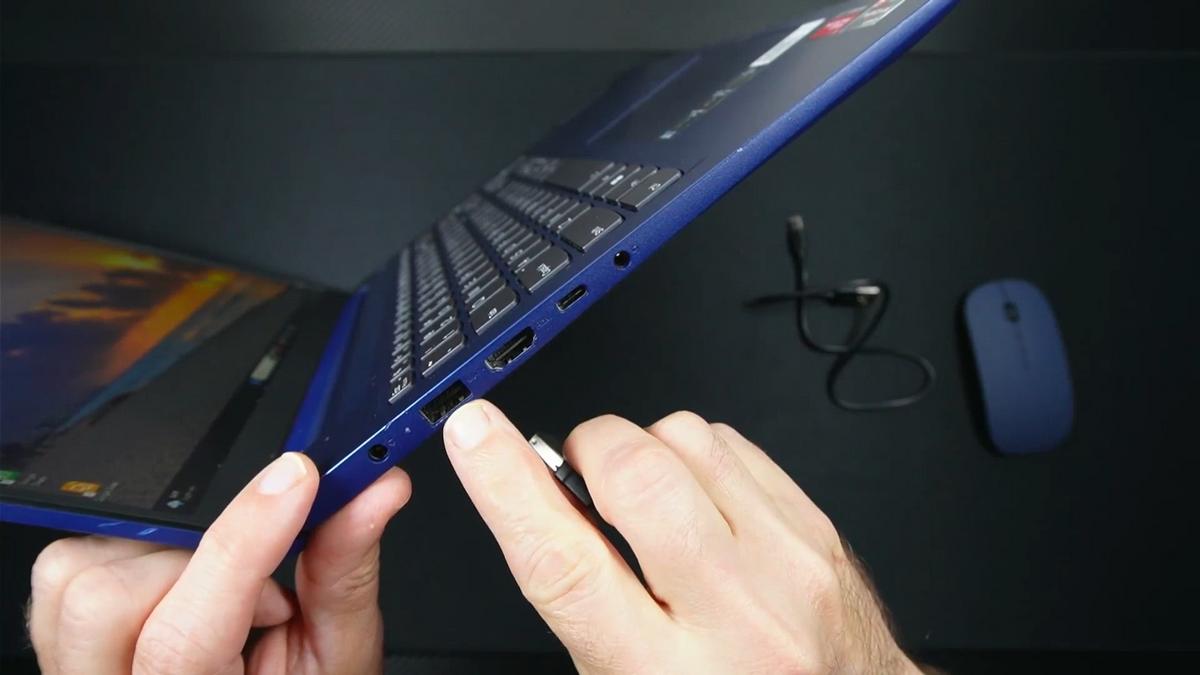
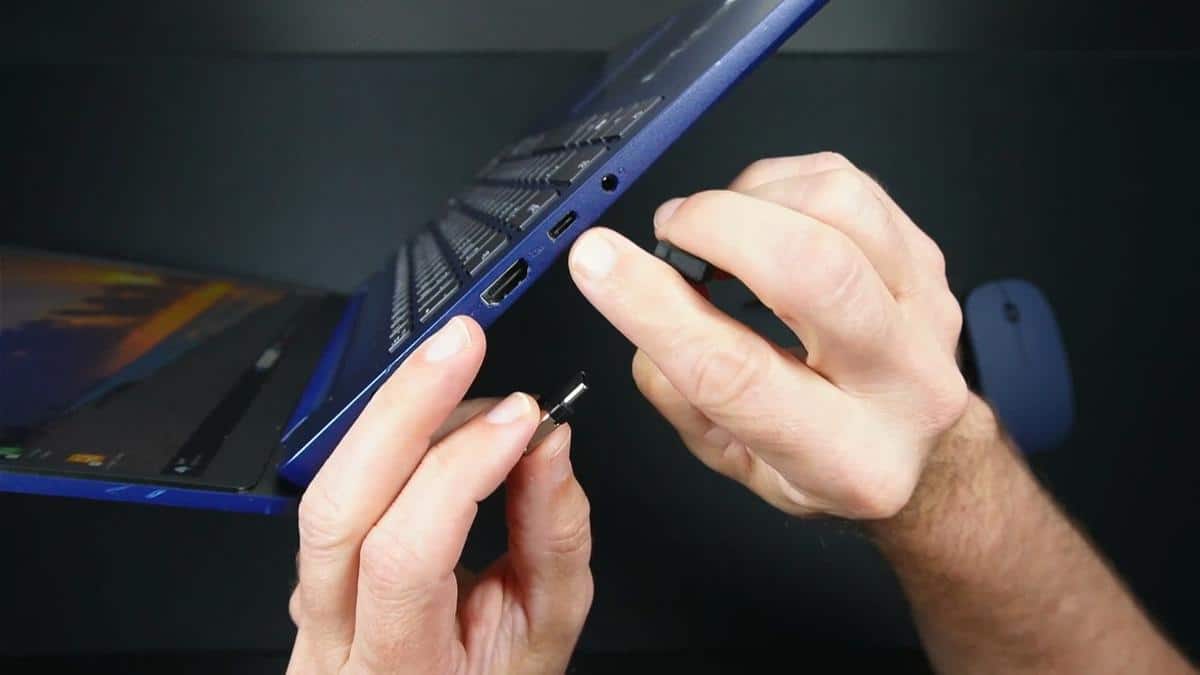
One standout detail I noticed during my evaluation is the dual-connector USB dongle. Most mice in this category give you either a USB-A or USB-C dongle. This one includes both connectors on the same dongle, so you can use it with virtually any computer you own. That is not a common feature, and it matters if you have older and newer devices in your home.
Getting Started
The box includes the mouse, a USB dongle with both USB-A and USB-C connectors, and a USB-C charging cable. Everything you need is in the box.
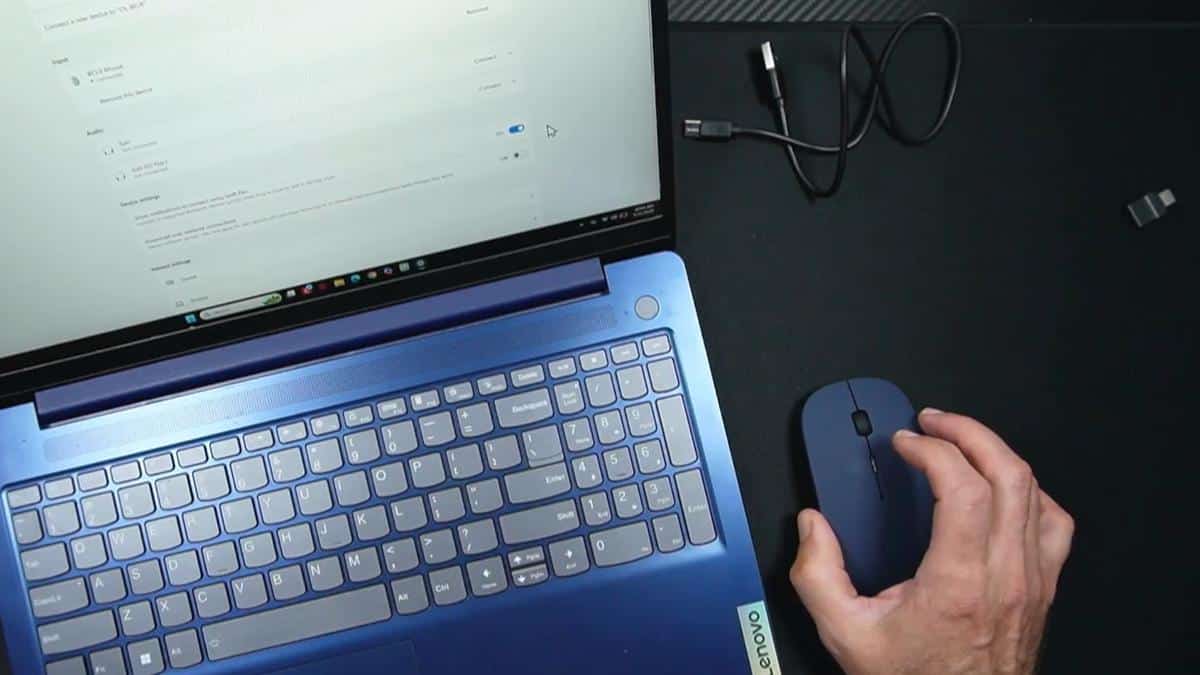
Setting up the dongle connection is the easiest route. You plug the dongle into your computer, flip the switch on the bottom of the mouse to the green position, and it connects automatically. No settings to navigate, no approvals required.
For Bluetooth, you hold the device button on the mouse for about three seconds until the light flashes. Then go to the Bluetooth settings on your device, find the mouse in the list, and tap to connect. As I demonstrated in the video, it shows up almost immediately and pairs in just a few seconds.
You pair each device once. After that, switching between them is just a button press. Most people should be able to handle the initial setup on their own, but a tech-savvy family member or caregiver can get all three devices paired in under ten minutes.
Ready to discover more innovative strategies for healthy, comfortable aging? Subscribe to our newsletter for expert-tested tips and product recommendations designed specifically for older adults.
Features That Matter to You
The silent click design is a genuine quality-of-life improvement. When I evaluated this product, I noticed you can feel the satisfying press of each button, but you truly cannot hear it from a foot away. If you use your computer in a shared space or while someone else is sleeping nearby, this is a meaningful feature.
The adjustable DPI settings let you control how fast the cursor moves across the screen. Three speeds are available: slow for precise work like spreadsheets or photo editing, medium for general browsing, and fast for larger screens or quick navigation. This is especially helpful for anyone who finds the standard cursor speed either too jumpy or frustratingly slow.
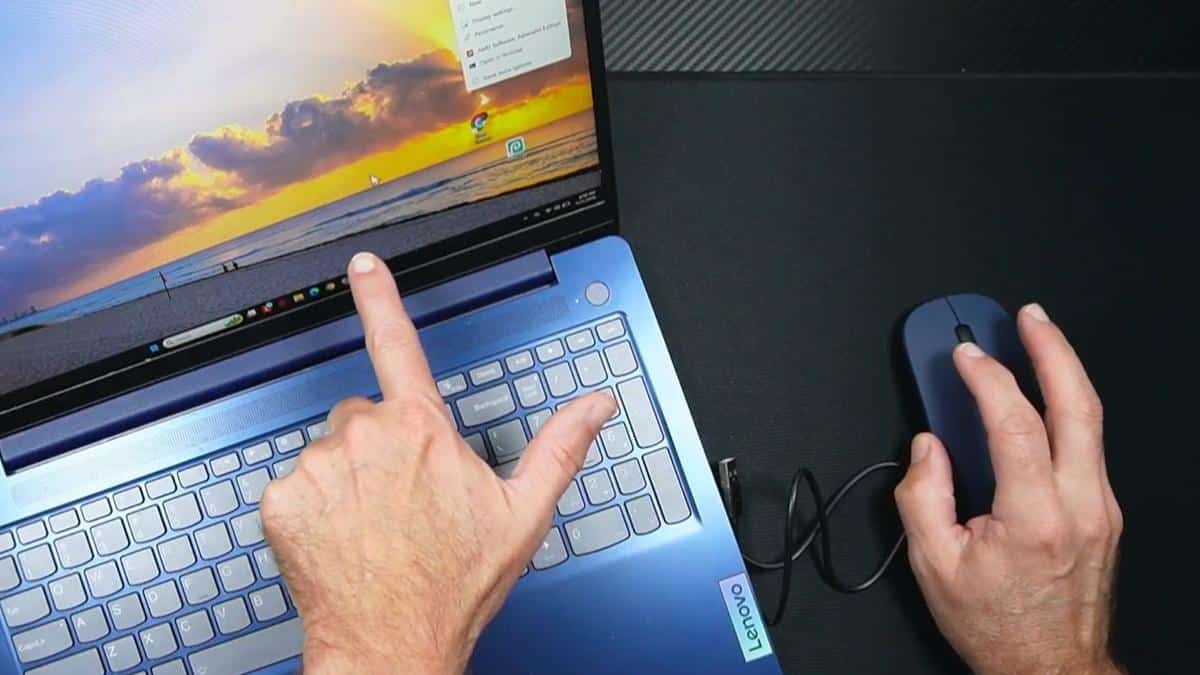
The Kenvala Wireless Mouse Multi-Device uses USB-C charging, which is the same connector found on most modern phones and tablets. You do not need to hunt for a special cable. And as I showed in the video, you can use the mouse while it is plugged in to charge, so a low battery never puts you out of action.
The automatic sleep mode kicks in when the mouse sits idle, extending battery life without any action on your part. When you pick it back up, it wakes almost instantly.
Real Life Experience
In the video, you can see that switching between devices takes about one second. You flip a small switch on the back of the mouse, and the cursor pops up on the new screen. It is as close to instant as you could hope for in a wireless setup.
As I demonstrated in the video, the DPI button lets you cycle through three cursor speeds. I pressed it once, twice, and then a third time to cycle back to the starting speed. It is intuitive once you try it.
When I evaluated this product, I noticed the activity mode is genuinely useful. If you step away from your computer to grab a cup of coffee and come back to a locked screen every single time, you know how annoying that is. Holding the DPI button activates the jiggler mode, and as you can see in the video, the cursor begins moving gently on its own, keeping the screen active without any intervention from you.
The battery life is measured in weeks rather than days. When it does need a charge, plugging in the included USB-C cable and continuing to use the mouse is a smart solution that I appreciated in real-world use.
When I evaluated this product, I noticed the silent click has a tactile crunch that you can feel under your fingertip. That physical feedback matters for people who rely on touch confirmation, especially those with any degree of hand tremor or reduced finger sensitivity.
Will You Be Able to Use It?
The mouse is lightweight enough that most people will not find it fatiguing to use for extended periods. The slim shape fits comfortably in hand for right-handed and left-handed users alike, though it is not specifically contoured for ergonomic grip.
The buttons require minimal force to click, which is helpful for anyone managing mild arthritis or reduced grip strength. The scroll wheel moves smoothly and does not require heavy pressure.
If you have significant tremors or very limited hand dexterity, a larger ergonomic wireless mouse may provide better support. This mouse is slim and relatively flat, which some users find easier to control while others prefer a more sculpted grip.
Setting up the Bluetooth connections does require navigating your device settings at least once per device. A caregiver or family member can do that initial setup for you so everything is ready to go right out of the box.
Important Considerations
This mouse is not a good fit for someone who uses only one device. The multi-device switching is the central feature, and if you only have one computer, a simpler single-device wireless mouse may serve you better.
The slim design is great for portability, but users with larger hands or those who need an elevated, contoured mouse for wrist support may find it less comfortable over long sessions. If wrist or hand pain is a concern, please consult with your occupational therapist about the best ergonomic computer mouse configuration for your needs.
The activity or jiggler mode is optional and must be manually activated. It does not turn on automatically. If you forget it is running, your screen will stay awake indefinitely, which may not always be what you want.
Users with very limited vision may find the small button indicators on the mouse body difficult to distinguish. The lights are small, though the color changes do signal connection status clearly once you know what to look for.
Always consult with your doctor or occupational therapist before making health-related product decisions, including choosing input devices if you are managing a condition that affects hand or wrist function.
Help When You Need It
Kenvala offers customer support through Amazon messaging for buyers who purchase through that channel. Response times are generally prompt for order-related or product questions.
The mouse is covered under the standard return window available through the retailer. If you experience any defects or connectivity issues out of the box, contacting the seller directly tends to yield the fastest resolution.
No replacement parts such as a removable battery are available since this is a sealed rechargeable unit. The built-in battery is designed for long-term use with proper care.
Understanding the Cost
The Kenvala Wireless Mouse Multi-Device sits in the mid-range of wireless mice. You are paying for the multi-device capability, the dual-connector dongle, and the rechargeable battery, none of which you will find bundled together in bargain-tier mice.
Compared to buying two or three separate mice for different devices, or investing in a premium brand name multi-device mouse, this represents solid value. There are no ongoing battery replacement costs since it charges via USB-C.
If budget is a primary concern and you only use one device, a basic single-device wireless mouse will cost less. But for anyone who regularly moves between two or three screens, the convenience factor here more than justifies the difference in price.
Making It Work for You
Have a family member or caregiver complete the initial Bluetooth pairing for each device. Once that is done, day-to-day switching is just a one-button press and does not require any tech knowledge at all.
Use the slowest DPI setting first to see how it feels. Many older adults find the slower cursor speed gives them more control and reduces accidental clicks, especially on smaller touch targets on a website.
If your screen keeps locking during video calls or long documents, activate the jiggler mode. Just remember to turn it off when you step away for longer breaks so your screen does not stay active unattended.
A mouse pad with a wrist rest can improve comfort significantly during longer sessions, even though the mouse itself works on most flat surfaces without one.
Our Recommendation
If you regularly use more than one device, the Kenvala Wireless Mouse Multi-Device is a genuinely smart purchase. The one-button switching works as advertised, the silent click is a real benefit, and the dual-connector dongle is a thoughtful touch I have not seen on many competing products.
It is particularly well suited for older adults who work from home, take online classes, or simply manage their digital life across a laptop, tablet, and desktop. No more unplugging and replugging. No more keeping track of multiple mice.
If you only use a single device, look elsewhere for a simpler option. And if you have significant hand or wrist pain that requires a specially contoured ergonomic wireless mouse, you may want to explore a larger sculpted design in addition to or instead of this one.
For everyone else who is juggling multiple screens and wants one clean, quiet, reliable wireless mouse to handle them all, this one earns a warm recommendation from me.
Where to Get It
You can check current pricing and availability for the Kenvala Wireless Mouse Multi-Device using the link below. Stock and pricing can change, so I always recommend checking the current listing for the latest details.
Wrapping It Up
The days of unplugging a mouse and shuffling it between devices are officially over. The Kenvala Wireless Mouse Multi-Device handles up to three devices with one quick button press, charges via USB-C, and clicks so quietly you will forget you are even clicking.
For older adults who want technology that works with them instead of against them, this little rose gold mouse punches well above its weight.
Have you tried a multi-device wireless mouse before, or is this a new concept for your setup? Drop a comment below and let me know. I read every one and love hearing how these products are working in your real life.