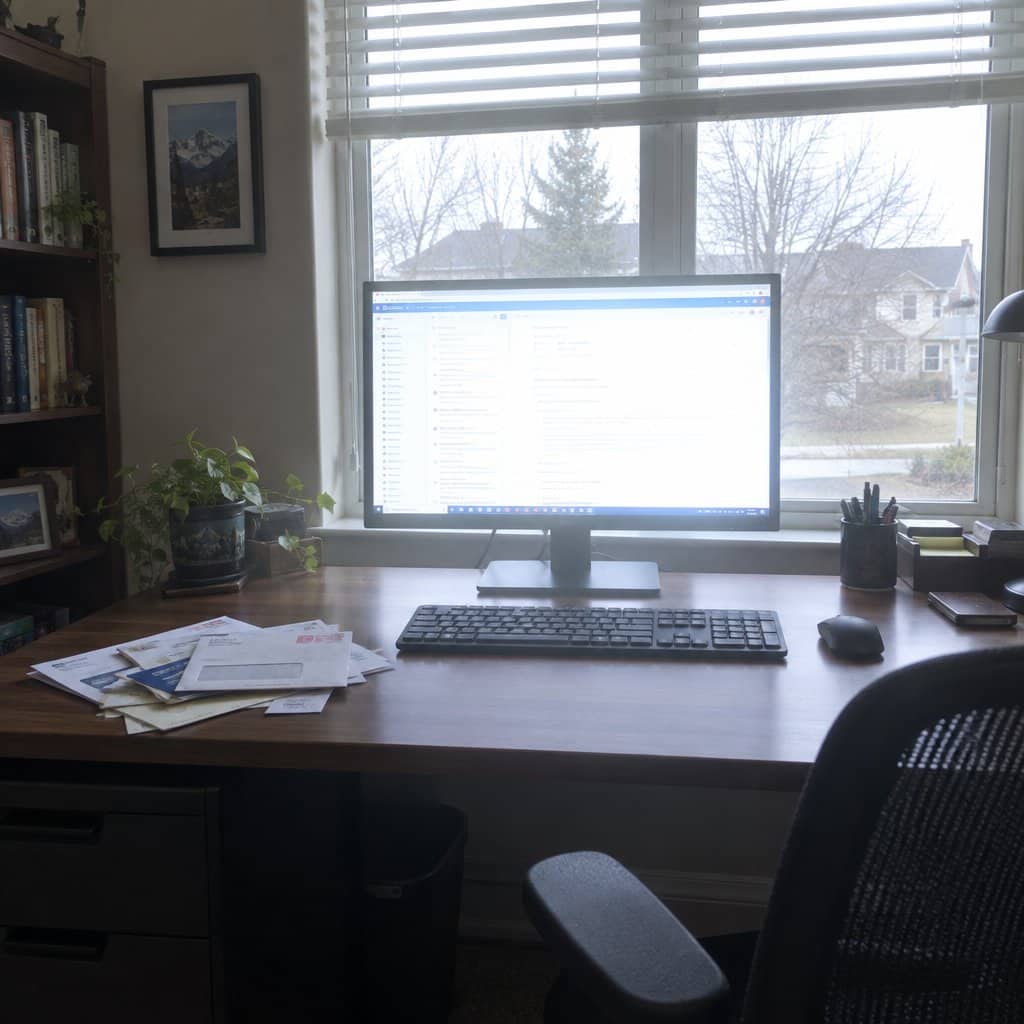
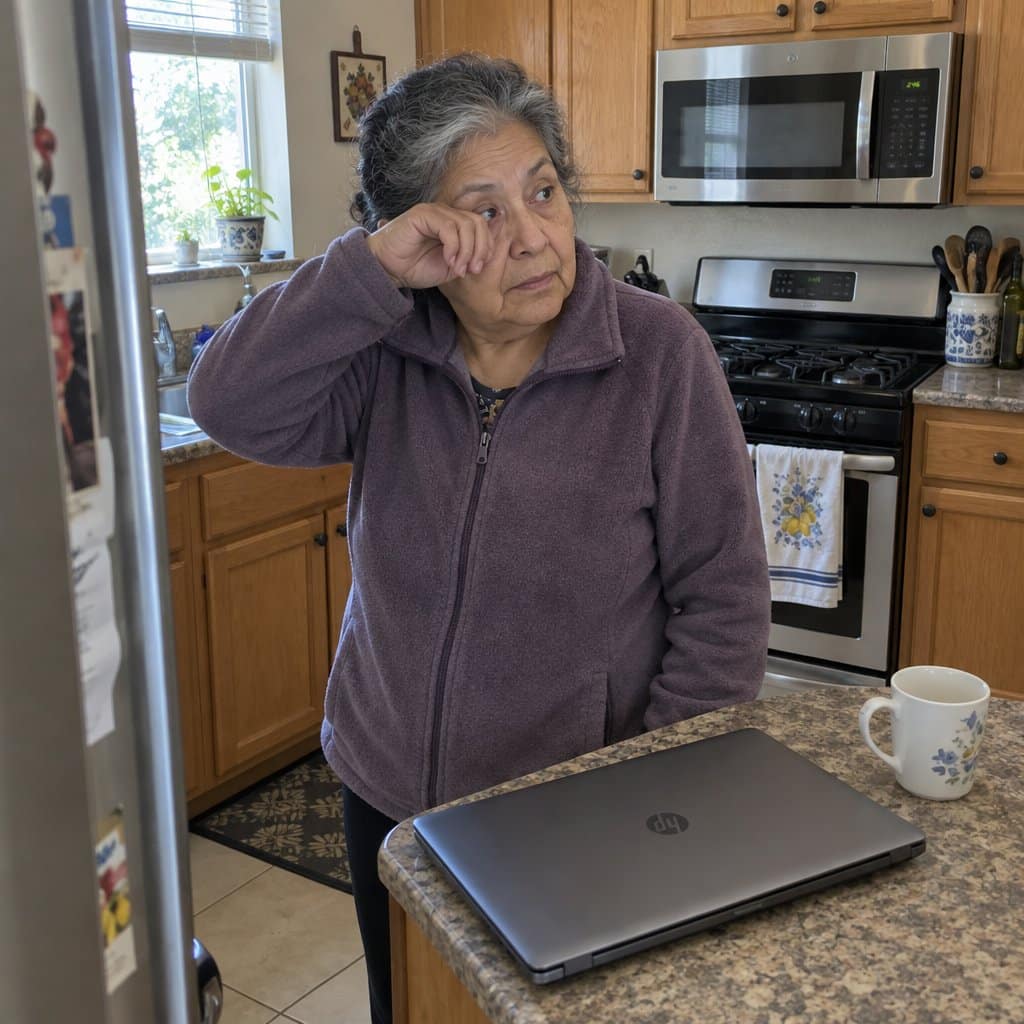
It’s 2:45 in the afternoon. You’ve been on the computer for a couple of hours — video calling the grandkids, checking bank statements, working on something you actually enjoy.
Then it hits. Your eyes feel dry, heavy, and tight.
You close the laptop and think: I’m just tired. My eyes aren’t what they used to be.
Here’s what I want you to know before you accept that explanation: that particular kind of tired — eyes aching after a couple of hours on a screen, almost always hitting in the afternoon — is almost never about age. It’s about setup.
Four things in your immediate environment are most likely working against you right now. All four can be adjusted in a single afternoon, most of them for free.
By the time you finish reading, you’ll know exactly what to look for, what to change, and which inexpensive tools make each fix easier to hold in place.
Screen Corner Eye Comfort Checklist
Get the exact four-step sequence to stop afternoon eye fatigue in under an afternoon—no expensive equipment required, and most adjustments cost nothing at all.
Why Your Screen Setup Matters More Than Any Eye Drop or Accessory
If you’ve ever reached for eye drops at 3 p.m., squinted at the screen and told yourself to push through, or just closed the computer and given up on afternoon use — you’re not alone, and you’re not being dramatic.
Most people assume this is simply what screens do to older eyes. I’ve seen that assumption lead people to buy blue light glasses, specialty eye drops, and screen filters — and get only partial relief, because they skipped the step that matters most: fixing the environment first.
The real culprits behind screen setup eye comfort problems are almost always environmental. Monitor position. Room lighting. Distance from the screen. Glare from a window or overhead light. Fix those four things, and everything else — including any accessories — works dramatically better.
Let’s go through each one.
Fix #1: Get Your Monitor at the Right Height


Why Height Is the Hidden Culprit
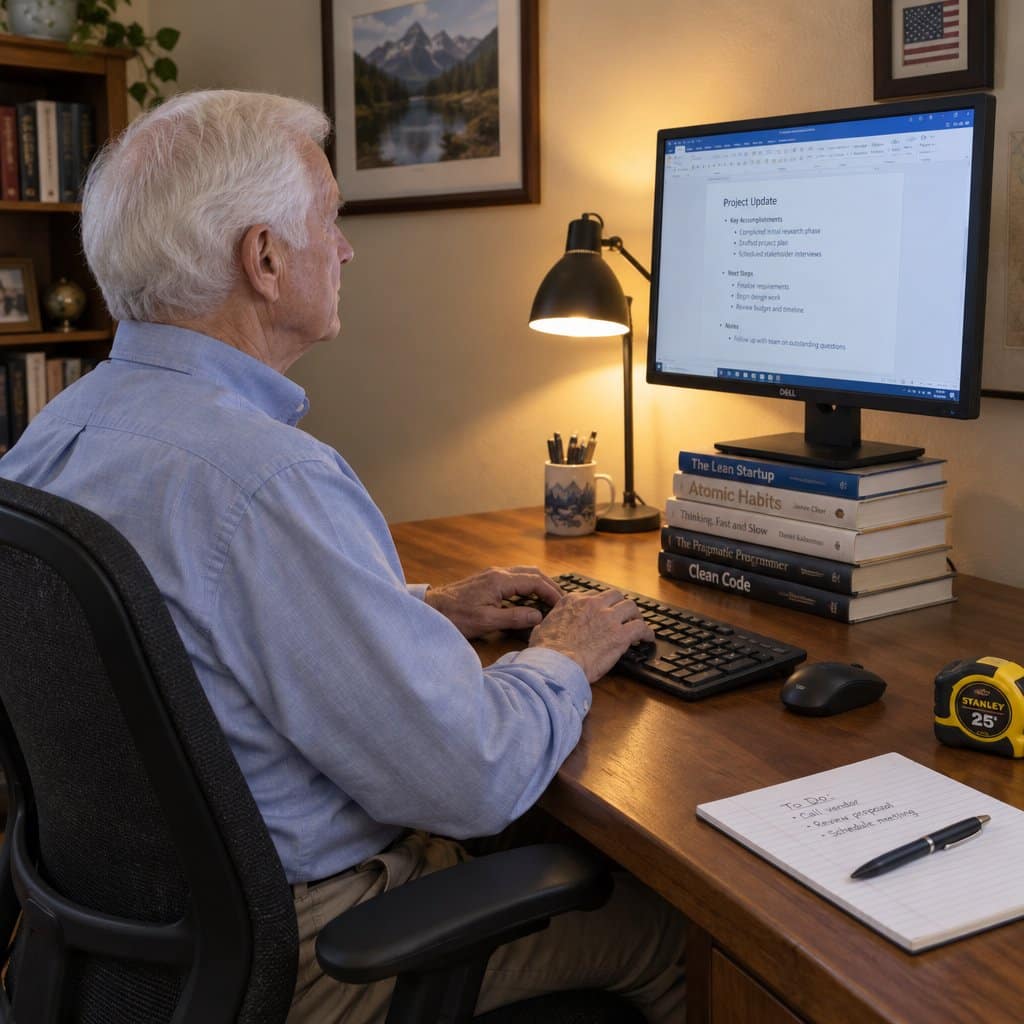
If your screen is too low — which is the most common problem I see — your head tilts down all day long. That forward-head position puts constant tension on your neck and upper shoulders, and that physical strain feeds directly into tired, aching eyes by afternoon.
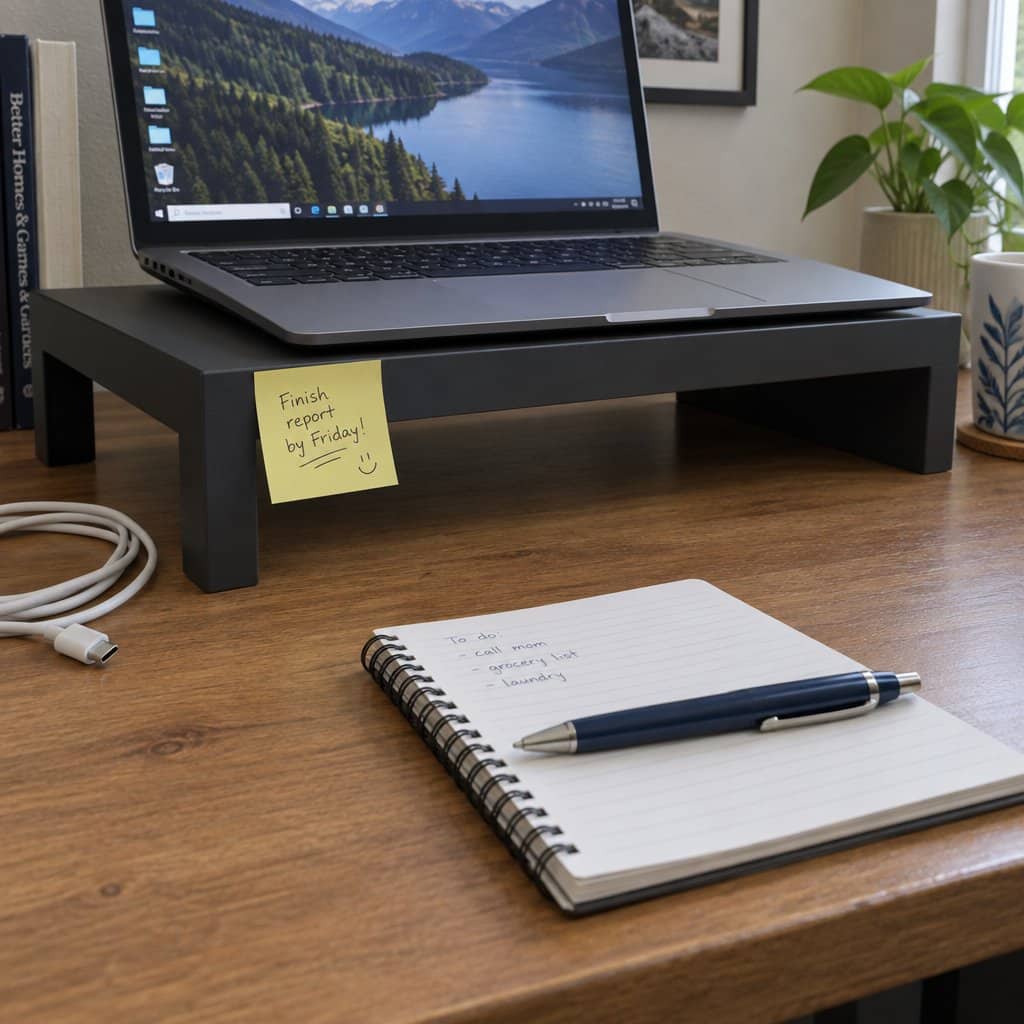
Laptops placed flat on a kitchen table or desk are the worst offenders. The screen sits far too low, forcing your head down and your eyes to work at an awkward downward angle for hours at a stretch.
The Right Position
The general guideline for how high a monitor should be for eye comfort is this: the top edge of the screen should sit at or just slightly below your natural eye level when you’re seated upright. Your gaze should angle slightly downward — roughly 10 to 20 degrees — which is the most relaxed position your eyes can hold for extended periods.
Before you spend anything, stack a few thick hardcover books under your laptop or monitor. If you sit up straight and your eyes land naturally at the top third of the screen, the height is working. If you’re looking down at the middle of the screen or craning your neck upward, adjust accordingly.
Making It Permanent and Precise
A stack of books confirms whether height is the issue. But for a setup you’ll actually use every day, a dedicated riser or adjustable arm gives you precise control without improvising. A monitor riser lifts a desktop monitor or laptop to the right height and keeps it there consistently — no books shifting out of place mid-afternoon.

If you want the flexibility to adjust height and tilt on the fly — or if you share the space with someone who sits differently — an adjustable monitor arm clamps to the desk and lets you reposition the screen in seconds. It also frees up desk surface, which reduces clutter around your screen.


Your Action Point
Right now, sit the way you normally sit at your computer. Note where your eyes land naturally. Then look at where the top edge of your screen sits relative to that point. If the top edge is below your natural gaze, height is part of your problem.
Fix #2: Stop Fighting the Light Behind Your Screen




What’s Actually Happening
Your eyes are constantly working to balance what’s on the screen with what’s happening around it. When a bright window sits directly behind your monitor, the screen looks washed out and your eyes strain to read it. When a bright window sits behind you, it reflects across the screen surface as glare. Either way, your brain is resolving competing light sources all afternoon long — and that’s exhausting.
This is one of the most overlooked causes of screen glare causing headaches and afternoon fatigue, and it’s often completely fixable without buying anything.
The Fix for Window Glare on Computer Screen
Position your screen so that windows are to the side — not in front of you, not behind you. Even moving your chair or rotating your desk a quarter turn can eliminate the worst of it.
Then look at the room behind your screen. If it’s dramatically darker than the screen itself, your eyes are working to bridge that contrast every time you look up. Adding a lamp beside the screen — not aimed at it, but illuminating the surrounding wall — reduces that gap significantly.
What Color Light Is Easiest on Eyes for Screen Use
Warm, soft light at desk level is far easier on your eyes than harsh overhead fluorescents or cool-white bulbs. It reduces the contrast load between screen and room without adding glare of its own. You’re not trying to flood the room with light — you’re trying to bring the background brightness closer to the screen brightness.
An LED desk lamp with adjustable color temperature is the most practical tool here. You can dial it from warm amber for evening use to a neutral white for daytime, and position it beside the screen rather than overhead or behind it.


Your Action Point
Sit at your screen at the time of day it feels worst. Look for where the competing light is coming from — a window in front, a window behind, a bright overhead fixture. Identify one reposition or one lamp addition that directly addresses the biggest source, and try it for a day before making any other changes.
Subscribe to our newsletter for more tips: Join here
Fix #3: Push the Screen Back and Make the Text Bigger
The Distance Problem Most People Miss
Does monitor distance affect eye strain? Significantly — and most people sit too close without realizing it.
The general guidance is that your screen should be roughly arm’s length away, somewhere between 20 and 28 inches from your eyes. At that distance, your eyes can hold a relaxed, natural focus. Much closer than that, and they’re working hard to maintain focus every second you’re reading.
Why People Drift Closer
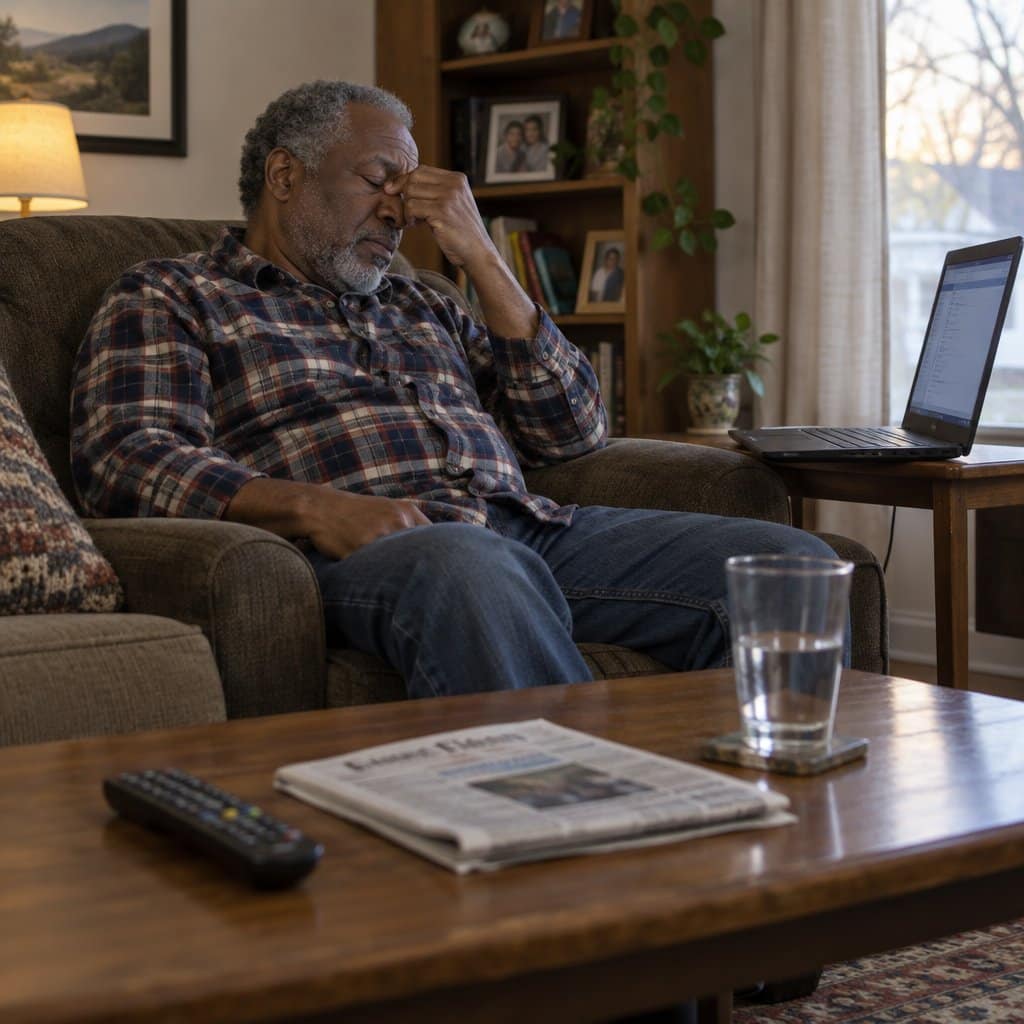
Here’s the cycle I see most often: the text on the screen is a little small, so you lean in to read it. Leaning in becomes the habit. And now you’re reading from 12 inches away instead of 24, which makes your eyes work two to three times harder than they need to.
The fix isn’t to push yourself back and squint. It’s to increase your text size first, then move back to a comfortable distance. On most computers, you can go to Settings and increase the display text size system-wide. In a browser, Ctrl + plus sign (or Cmd + plus on a Mac) zooms in immediately.
Increasing text size isn’t admitting defeat — it’s removing unnecessary work from your eyes so they have energy left in the afternoon. If you’re exploring whether a laptop or tablet works better for your needs, text size and screen distance are worth factoring into that decision too.
How Distance and Height Work Together
Getting both height and distance right at the same time is what really changes the afternoon experience. When your eyes hold a relaxed, slightly downward focus from the right distance, they’re doing the least possible work — and that’s what lets you stay comfortable for two or three hours instead of one.
Your Action Point
Measure the distance from your eyes to your screen right now. If it’s less than 20 inches, that’s a significant contributor to your afternoon fatigue. Bump the font size up one or two steps, push the monitor back, and give it a day before deciding whether you need anything else.

Fix #4: Deal With Glare Directly at the Screen Surface
The Last Layer of the Problem
Even after you’ve adjusted height, repositioned the room lighting, and set the right distance, you may still notice a residual shimmer or wash on the screen — especially in the afternoon when the light angle changes. This is surface glare coming from the reflective coating on the monitor itself, and it’s the one place where a targeted accessory genuinely earns its spot in the setup.
Run a quick check right now: turn off the monitor and look at the dark screen. If you can see a clear reflection of the room, a window, or yourself, surface glare is part of your problem.
Two Tools That Address Surface Glare
The first option is anti-glare screen protector film applied directly to the monitor surface. It diffuses incoming light so reflections scatter rather than focus into a sharp glare. This works best when your screen is stationary — a desktop monitor you use in one spot — and when the main glare source is coming from a fixed direction like a window or ceiling light.
The second option is blue light glasses worn while you use the screen. Rather than changing what reaches the screen, these filter what reaches your eye. They work best when you move between devices — laptop in the kitchen, tablet in the living room — or when you want one portable solution that travels with you. If you already use a tablet for video calls or reading, glasses cover that use case without needing film on every screen.

Which One Should You Choose?
Think of it this way: if your screen lives in one place and you’ve already improved the room setup, anti-glare film is the cleaner, always-on solution. If you move around or use multiple devices, glasses give you portable protection that follows you.
What I’d caution against is starting with either one before addressing the room-level fixes above. These accessories work best as the finishing layer — the last five percent — once the environment is already working for you. Someone who repositions their desk, adds a warm desk lamp, and then applies anti-glare film typically gets nearly complete relief. Someone who skips to the accessories first notices only partial improvement and wonders why.
If you’re also thinking about improving lighting elsewhere in your home for reading or safety, the same warm-light principles apply throughout — good light close to where you need it, without harsh overhead glare.
Screen Corner Eye Comfort Checklist
Get the exact four-step sequence to stop afternoon eye fatigue in under an afternoon—no expensive equipment required, and most adjustments cost nothing at all.
Your One-Afternoon Action Plan
Do These in Order
The sequence matters. Each fix builds on the one before it, and doing them in order means you’ll know exactly which change made the difference.
- Height first: Adjust your monitor so the top edge sits at or just below natural eye level. Confirm with books before investing in a riser.
- Lighting second: Move your screen so windows are beside it, not in front of or behind it. Add a warm desk lamp to reduce the contrast between screen and background.
- Distance and text size third: Increase font size, then push the screen to arm’s length (20–28 inches). Check that you can read comfortably without leaning forward.
- Surface glare last: Run the dark-screen reflection test. If you see glare, choose anti-glare film for a stationary setup or blue light glasses if you move between devices.
You Have Everything You Need
Tired eyes by afternoon aren’t a signal that screens are off-limits as you get older. They’re a signal that your setup is working against you — and now you know exactly what to look for and how to fix it.
You don’t need a technician, an expensive new monitor, or a specialist’s appointment. You need an afternoon, a measuring tape, and the willingness to move a few things around.
Start with whichever fix you suspect is your biggest issue — for most people, that’s height or lighting — and notice whether afternoon comfort improves within a day or two. Then layer in the rest.
If you use a computer or tablet to stay connected with family, manage your finances, or pursue hobbies you love, a setup that actually works for your eyes is worth an hour of your time. If you’ve found that a simpler laptop or a larger keyboard has already made computing more comfortable, this is the next piece of the puzzle.
Which adjustment are you going to try first? Share it in the comments — your experience might be exactly what someone else needs to hear today.