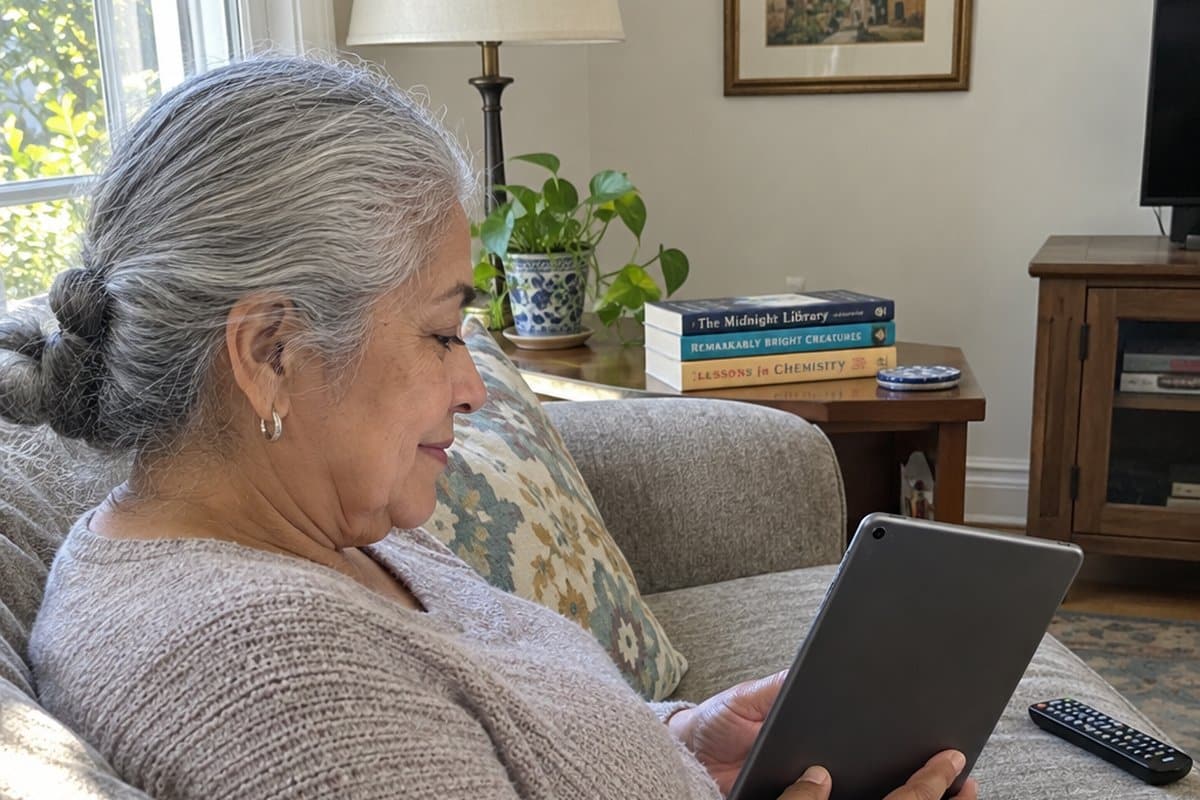
If you want the short list, these are my top tablet picks for seniors, and you’ll find the details on each one further down.


Is your tablet sitting in a drawer? Many end up there because they were too confusing, too heavy, or needed more setup than anyone wanted.
This guide to the best tablets for seniors starts with a different question: how much setup will you put up with, and how much help can family give?
Pick the type that matches your answer, then the product. If a tablet felt confusing, that was a fit problem, not a failing on your part.
Buying for a parent? I've added short notes for you along the way.
Tablet Buying Checklist for Seniors
Download our free tablet buying checklist designed specifically for older adults—cut through the confusion, avoid costly mistakes, and find the right device for your hands, vision, and budget in just minutes.
What to Look For
The deciding question is who does the setup, and who fixes problems later? Pre-configured tablets reduce both. Mainstream tablets typically need an hour or more of adjusting.
- Screen size: About 10 inches is the usual sweet spot for reading and video calls. At 8 inches you see less text. Past about 11 inches, tablets get heavy and awkward. I lean toward larger screens because a tablet shouldn't strain your eyes.
- Weight: Under about 1 pound (roughly 450 g) is easier on weak hands and for reading in bed. Many 10-inch tablets typically run 1 to 1.1 pounds. Check the listed weight, and hold one in a store for a few minutes if you can.
- Text size and brightness: Both are adjustable on every mainstream tablet, for free. Large text, bold text, high contrast and a built-in magnifier are standard. For print, screen magnifiers help too. If vision may be part of the problem, a free vision screening is a good first step.
- Screen reader: This matters for low vision. The screen reader on one major platform is probably the best compared to other tablets.
- Getting out of apps: Look for a visible home button, so you're never stuck in an app.
- Storage: 32 GB covers the basics, but photos fill it quickly, so more room helps if you keep many pictures. Check whether storage expands with a card or only through a cloud subscription.
- Software updates: Ask how many years the maker promises. Budget models often get fewer years than premium ones.
- Sound, camera, battery: Loud, clear speakers help video calls. A good front camera matters more than the rear one. Look for roughly 8 to 10 hours of listed use (a typical range).
- Extra costs: Subscriptions, cellular plans, cases and stands.
- Matching your phone: If you already own a smartphone, a tablet on the same system connects and shares photos more easily.
- Keyboards and styluses: Some also come with keyboards and styluses, which speed up email and make touch more precise.
Some tablets feel too complicated to use for a simple reason. Physical interfaces were dominant, and touch screens offer something completely different. There are a few differences between systems, and additional things worth weighing.
Quick type chooser:
- Want it to just work, with family on the same system: iPad type.
- Tight budget, mostly reading and video calls: budget Android.
- Want speed, a bright display or a stylus: premium Android.
- Gets stuck often, and family can pay monthly: pre-configured.
Best iPad Tablets for Simplicity and Reliability
A polished, consistent interface with long software support and easy video calls with family on the same system. It suits people who want fewer surprises and can afford to pay more.
If you already own a smartphone, matching its system makes sharing data easier.

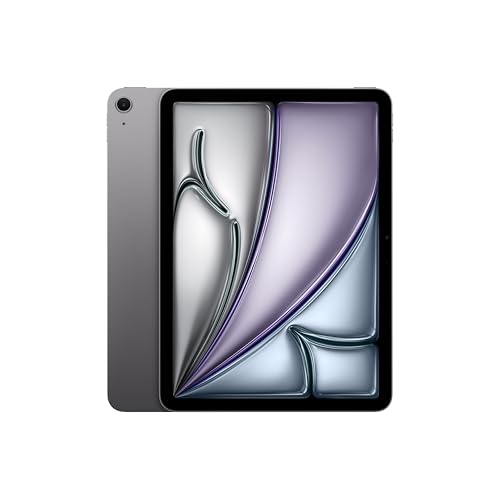
This type suits you if you want a polished, consistent interface, long software support and easy video calls with family on the same system. It's a common gift for a parent.
The maker controls its app store more tightly, so there's less worry about downloading something harmful. The screen reader suits very poor eyesight.
It's the wrong pick for tight budgets, or a first-time user who gets overwhelmed by settings. Storage usually can't be expanded, and you can often find an excellent Android for close to half the price.
Once you're set up, try the best tablet games for seniors.
Apple iPad 11-inch (A16, 128GB)
This is the newer generation, with an 11-inch screen that helps reading and calls. Check the weight, since size adds ounces. The catch is price, and you'll still need a setup session.
Apple iPad 10.2-inch (Renewed, 32GB)
An older generation sold renewed, so it costs less. 32 GB covers the basics but fills quickly with photos, and it can't expand.
Apple’s newest iPadOS no longer supports the A10 chip in this model, so it gets fewer updates from here. I’d keep it as a low-cost second tablet and pick the 11-inch iPad above if it will be the main one.
Best Budget Android Tablets for Everyday Use
Video calls, reading, streaming and photos at a low price. It suits people who will adjust text size and notifications once to keep the cost down.


This type covers video calls, reading, streaming and photos at a low price. One family has a built-in reading and voice assistant ecosystem. It's probably the best choice for people who mostly read books, because the e-reader works excellent.
Look for a smart-app control that lets family choose which apps appear. It's useful when you're setting up for a parent.
You probably don't need the best performance. Choose a reliable one that does the basics without freezing.
It's wrong for anyone who won't tolerate ads, shopping prompts and notifications, or who wants fast multitasking. Cheaper means more adjusting.
Your first 15 minutes: turn off notifications, cut ads where settings allow, and enlarge the text.
Amazon Fire HD 10 (10.1-inch)
It's built around reading, streaming and a voice assistant, on a 10.1-inch Full HD screen. The downsides are ads and shopping prompts, plus modest speed.
COOPERS 10-inch Android Tablet
The listing shows storage that expands by card, so you can skip a cloud subscription. I'd check the maker's stated update period before buying, since budget models often get fewer years.
Best Premium Android Tablets for Speed and Screen Quality
A bright, sharp screen, fast performance and often a stylus for people who want more from their tablet. It suits confident users who will accept a longer setup.


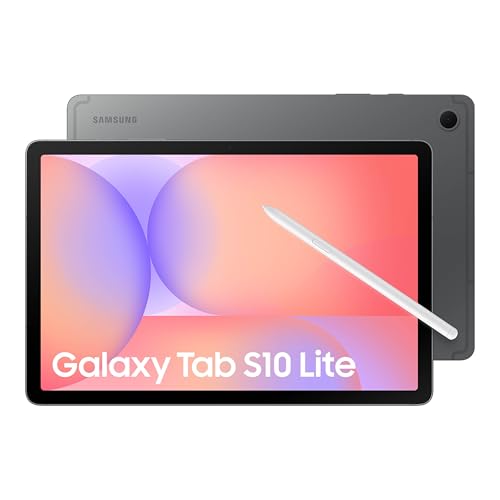
This type suits people who want a bright, sharp display, fast performance, a stylus or multitasking. Loud, quality speakers are common, and many people with hearing difficulties appreciate them. Add a keyboard and it works as a proper small laptop.
It's wrong for first-time users or anyone who wants minimal menus. Expect an adjustment period.
Setup can be difficult at first, but it usually gets easier once the tablet is set up the way you like.
It costs more, often close to the iPad type, and many are heavier. Check the weight.
Samsung Galaxy Tab S11
The listing shows a Dynamic AMOLED 2X display and IP68 resistance, which helps if it gets splashed. The catch is price and a learning curve. Confirm the stylus is in the box.
Samsung Galaxy Tab S10 FE
It has a large display and usually costs less than the top models. You still get more menus than simpler types, so plan on a setup session.
Best Pre-Configured Senior Tablets for Non-Tech Users
Large icons, simple menus and family-managed setup for people who find ordinary tablets confusing. It trades freedom and lower cost for simplicity.
This type suits people who find ordinary tablets confusing. Large icons, a picture-based interface and one-touch actions make it easy for non-tech users. A visible home button means you can't get stuck in an app.
Family can often handle setup and sometimes access the tablet remotely. It's a good idea for people who resist new devices or struggle to learn how they work.
It's wrong if you want a browser, open app choice, or incoming calls from unknown numbers. Some block them.
The trade-off: you're often buying a service, not a product. Some rent the tablet for a monthly fee. That costs more over time and offers fewer apps. This is the clearest simplicity-versus-freedom case.
Pix Star Touch Tablet for Seniors
The listing promises a touch screen and simple interface over Wi-Fi. Before you buy, check whether any monthly fee applies, what stops working without it, and which features are missing.
Best Lightweight Tablets for Comfortable Holding
Smaller, lighter tablets that are easier on weak hands and for reading in bed. They suit people with arthritis or sore joints who can enlarge the text.
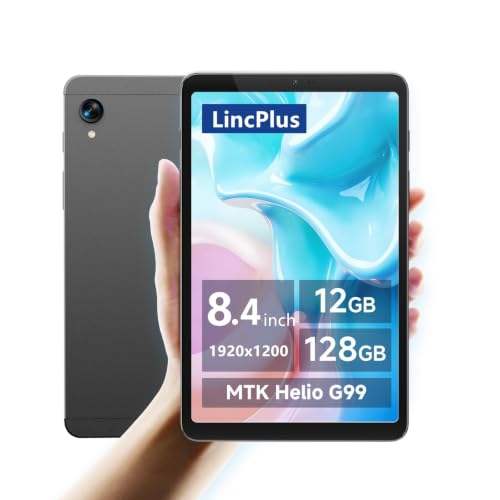


This type suits weak hands, arthritis, and anyone who reads in bed. Smaller tablets, around 8 inches, are easier to hold in one hand. If a tablet is too heavy to hold with arthritis, look at the overall weight first.
It's wrong if you need more text without enlarging it, or if you have very low vision. Larger screens are easier to see.
If small print is the problem, screen magnifiers can also help.
The trade-off: lighter means smaller. A larger tablet plus a stand may solve both. See the stands below.
Samsung Galaxy Tab A11 (8.7-inch)
It has an 8.7-inch, 90Hz screen and 64 GB of storage. The text area is smaller, so you'll want a bigger font.
Lenovo Tab One (8.7-inch)
The listing cites up to 12.5 hours of YouTube streaming, a maker figure. Its HD display is less sharp than pricier screens, and text will need enlarging.
Best Tablet Stands and Cases for Easier Use
Stands, straps and grippy cases that take the weight off your hands and keep a tablet from slipping. They help anyone who tires holding a tablet or drops it often.


Stands and cases suit anyone who struggles to hold a tablet for long, or drops devices often. An anti-slip case makes holding easier.
Some cases change shape to prop the tablet on a table, which can ease the strain on your hands.
Some products also come with keyboards, which help you write emails faster.
They're wrong if your real problem is a confusing interface. A stand doesn't fix that, and it adds cost and bulk.
It's a cheap fix for weight and grip, and often better than buying a smaller tablet. For placement, see setting up a screen corner that spares your eyes.
FINTIE Universal Tablet Hand Strap Holder
The strap holds the tablet to your hand, so you grip less, and it fits 7 to 11 inch tablets. The strap takes getting used to, and it adds bulk.
HGWALP Universal Tablet Folio Case
This folio case props the tablet at several viewing angles and is made to fit a range of tablet sizes. Check your exact model first, since universal cases don't always fit well.
Frequently Asked Questions
Do senior tablets require a subscription? Pre-configured ones usually do. Mainstream tablets don't.
How do I make the text bigger? Open Settings, then Display or Accessibility, then Text Size. It's free.
Can family manage a tablet remotely? Yes, on pre-configured tablets and with a remote-help app on others.
Should I buy a simple or regular tablet for my parent? Choose simple if they get stuck often and you can pay monthly. Choose regular if they want freedom and you can help with setup.
Hacks and Advice
- Do this first, free: Turn up text size and brightness on the device you already use. You'll see whether the problem is the tablet or the settings.
- Keep it simple: Delete apps they won't use. Make icons large for video calls, messages, photos and music.
- Try a free remote-help app: It makes any tablet look simpler and lets you take over if a parent gets stuck. Only let trusted family connect, and never give access to someone who calls or messages out of the blue, since scammers use these apps too.
- Add a tracking app: Tablets get misplaced.
- Avoid buying on specs alone, and check yearly: Confirm updates still arrive, and re-check text size and notifications.
Tablet Buying Checklist for Seniors
Download our free tablet buying checklist designed specifically for older adults—cut through the confusion, avoid costly mistakes, and find the right device for your hands, vision, and budget in just minutes.
Choose the Help You Have
Match the type to the help available. Simpler costs more or limits apps. Powerful or cheap needs more adjusting.
A confusing tablet is a fit problem, not a personal one.
For a free first step today, turn up the text size and brightness on your current device. When you're ready for more, I also offer the Home Safety and Independent Living Assessment.
Which type fits your situation, and what would you want help setting up? Tell me in the comments.